Update an Access Policy
Use Wayfinder's User Interface or CLI to update/edit the details of a specific access policy.
When you edit a policy, it is updated for anyone who assumes the associated role(s) after your edits. But current live sessions using the role(s) are not affected.
CLI Commands
Global Access Policies
wf get globalaccesspolicies POLICY -o yaml > FILE.yaml
Use the -o yaml > FILE.yaml flag to output the YAML to file.
Update the yaml policy as needed and apply the update file using wf apply -f FILE.yaml
Ensure that you do not change the metadata name, otherwise you'll create a new policy.
Workspace Access Policies
wf get accesspolicies POLICY -w WORKSPACE -o yaml > FILE.yaml
Use the:
-w WORKSPACEflag to indicate the workspace.-o yaml > FILE.yamlflag to output the YAML to file.
Update the yaml policy as needed and apply the update file using wf apply -f FILE.yaml
Ensure that you do not change the metadata name, otherwise you'll create a new policy.
Web Interface Instructions
Global Access Policy
Steps
- Expand Admin, and then navigate to Policy > Cluster Access
- Click on the name of a access policy to see all the details of that policy
- Click on the Edit button.
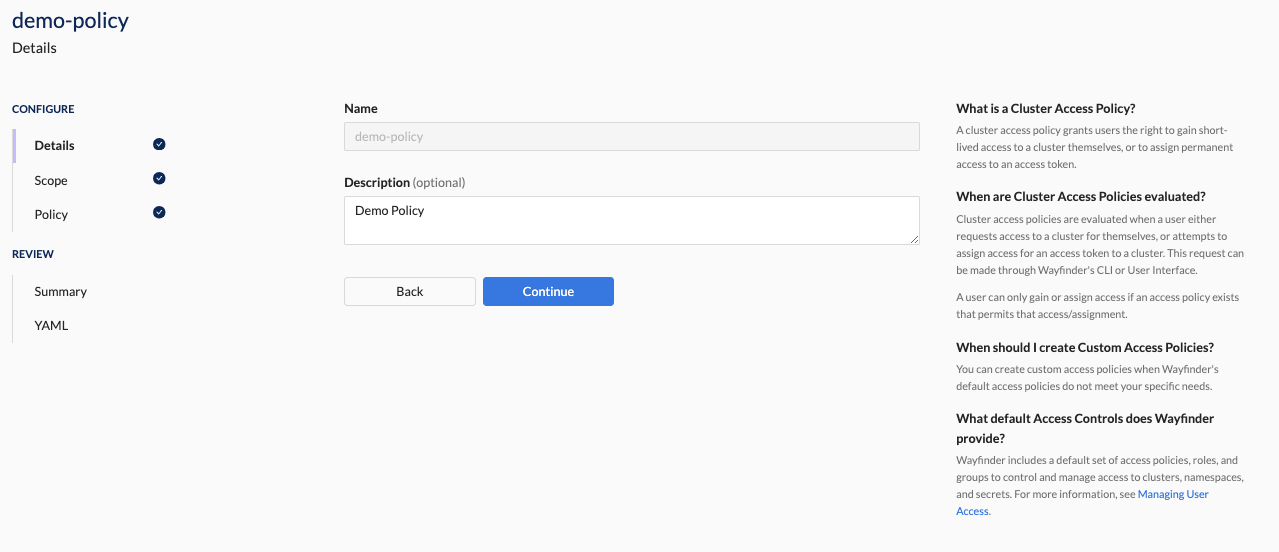
- You'll see that you can't update the name of the policy. Update the other properties as needed.
Screenshot(s)
Workspace Access Policy
- Expand Workspaces > YOUR-WORKSPACE-NAME, then navigate to Settings
- Click the Cluster Access Policies tab
- Click the name of the access policy
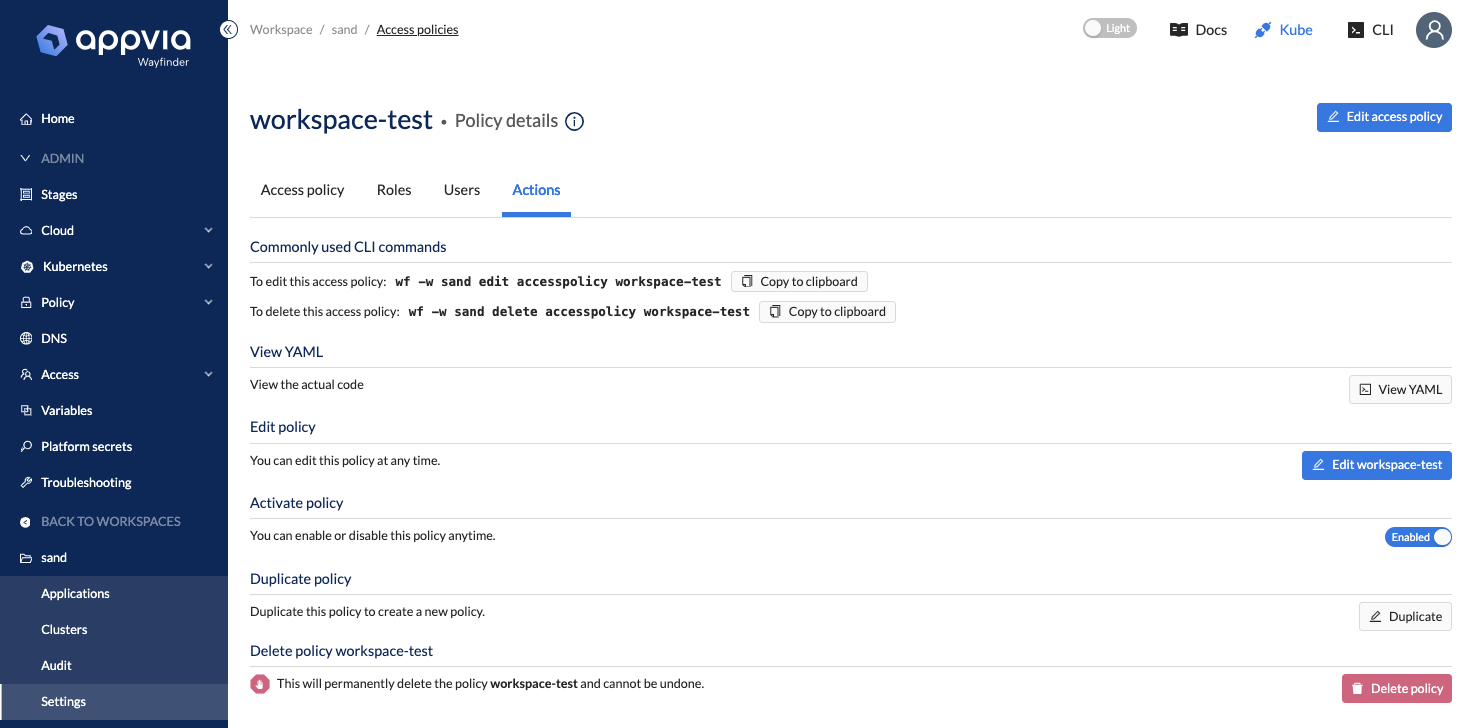
- CLick the Actions Table
- Click the Edit button.
Screenshot(s)